Amon stands for Appy Monitoring. It is an app written in Appy. Deployed on the same server as a bunch of Appy sites, Amon uses public URLs exposed by any Appy site to check whether a Appy site is live or healthy.
Amon is then able to restart a site being down, or being seriously failing, according to the state of its pool of threads.
Amon can also monitor traditional companion processes for Appy sites, like a Apache reverse proxy or LibreOffice running in server mode.
Beyond monitoring and acting on Appy sites, Amon also includes a log scanner: it can read applicative logs from any monitored Appy site and create objects in its database, transforming your logs into a real database, with all the search functionalities one may found in any Appy app.
Installation
First of all, if not done yet, create, on the server where Amon and Appy sites must be deployed, a Python virtualenv in /home/appy/.venv, as explained here.
Amon is not on PyPI, is developed in a rolling-release mode, has a public git repository and depends on the last development version of Appy. Although there are published versions of Appy on PyPI, the development version of Appy, also available via a public git repository, is quite stable.
Amon is traditionally installed in /home/appy/Amon, as a Appy site listening on port 7999. Create this site, with the lastest versions of Amon and Appy from their git repositories, by typing, as appy user:
appy make site /home/appy/Amon -a url=https://www.geezteem.com/807/git~/Amon -d url=https://www.geezteem.com/17/git~/appy
The site has been created. Explanations about the structure of this Appy site can be found here.
In order to change the port where Amon will listen, edit the configuration file that has been generated in /home/appy/Amon/config.py and change the port:
    ...
    c.server.set(app, site)
    c.server.port = 7999
    ...
Preparing the Appy sites
Amon, once finally configured (see below), will scan your server, find Appy sites and get, from their own config.py files, plenty of useful info about these sites.
Because Amon will read config.py files by importing them as Python modules, it will work if each file respects the following conventions.
The « complete » function must be defined with a second parameter, named « minimal »
The complete function must be defined with a second parameter, named minimal, defaulting to False:
def complete(c, minimal=False):
    ...
Perform specific imports only in non-minimal mode
When your site runs, the complete method is called with minimal being False: the whole configuration is loaded. When Amon reads it, it reads a minimal configuration. Any specific element you need to define by using an import statement must be done if minimal is True, like in this example:
def complete(c, minimal=False):
    ...
    if not minimal:
       from MyApp import MySpecificConfig
       c.myConfig = MySpecificConfig()
That way, Amon does not import a big part of (or all) the import tree from your app, which would lead to total mess.
Along the same lines, please avoid using global import statements at the start of the config.py file.
Finalizing the configuration via the Amon web interface
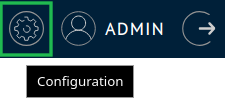
The remainder of the configuration is done via the web interface. Launch your site, open http//<yourserver>:7999 with your web browser and go to the main site configuration:
Within the main configuration, go to page Parameters within tab Config.
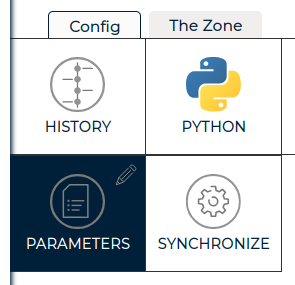
Click on the pen to edit it.
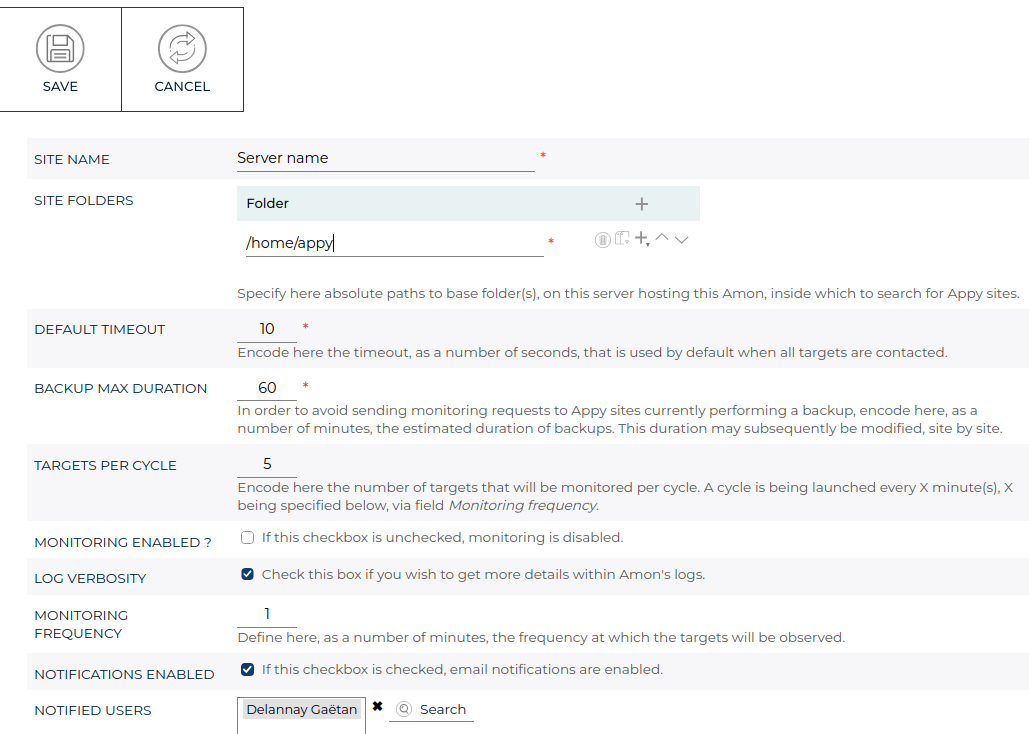
Here are a few additional comments.
- Since Amon has access to the config.py file of each Appy site being its target, it can read its backup configuration and determine when it will start. In conjunction with the backup max duration estimate you encode here, Amon defines a time interval during which it will not send any monitoring request to the site.
- Choose a notified user for which you have defined an e-mail address.
- The default monitoring frequency is 10 minutes. You may reduce this down to 1 minute, but do it with care: monitoring consumes server and site resources, even if everything is quite optimized.
Enabling monitoring
You are almost done !
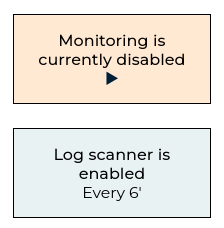
Although you may have enabled monitoring via the web configuration page described hereabove, since I worked hard to propose a nice widget to do it, lets use this latter! It is rendered in the Amon portlet (= the left pane).
How Amon works
Amon is a web site, but can also trigger jobs a regular intervals, by using the Appy scheduler (yet to be documented). The Appy scheduler has fully implemented the cron syntax to specify intervals at which to run these jobs. The Appy scheduler is not some external piece of software: it is built within the Appy web server. Jobs are run according to the jobs definition (config.jobs), in the context of the main server loop that handles web requests as well.
When Amon is started, 3 jobs are launched. This can be seen in Amon's applicative log, as found in /home/appy/Amon/var/app.log.
2026/10/02 08:39:52 | INFO | system | > Job tool/recordServerStatus configured @ */1 * * * *.
2026/10/02 08:39:52 | INFO | system | > Job tool/hourlySyncTargets configured @ 0 * * * *.
2026/10/02 08:39:52 | INFO | system | > Job tool/daylife configured @ */1 * * * *.
2026/10/02 08:39:52 | INFO | system | > Job tool/scanLogs configured @ */6 * * * *.
I said 3, but there is a fourth one here. The first job, recordServerStatus, is not Amon-specific, is defined on any Appy site, is launched every minute and records useful info about the server status: RAM & CPU usage, status of the threads in the pool, etc. Recorded statuses can be consulted in the part of the web interface called The Zone (you may see it in at least one of the screen captures somewhere on this page).
Job hourlySyncTargets, triggered every hour, will search for Appy sites and read information about it, by reading their config.py file.
job daylife will launch the monitoring requests as we just configured it. The jobs runs every minute, but does nothing unless the actual frequency, as customized via the web configuration, is respected. The daylife will also launch, when relevant, the required restart actions and send mail notifications.
Finally, job scanLogs, that runs, by default, every 6 minutes, will scan the applicative logs from every target and convert found entries into objects (log entries) in the Amon database. These objects can then be viewed and searched via the standard Appy tools, like any data in any Appy database.
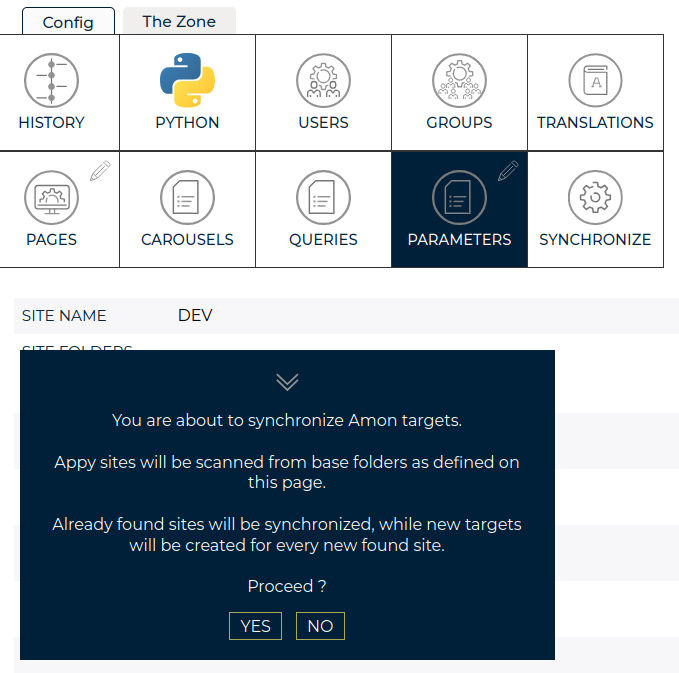
Instead of waiting one hour for a target to be found and read by Amon, you can also trigger the hourly sync at will, via button Synchronize, found in page Main config → Config → Parameters.
Upgrading Amon
Upgrading Amon can be done via the following steps.
- Logged as the appy user, git-pull the Appy copy being specific to your Amon site:
cd /home/appy/Amon/lib/appy
git pull
- Similarly, git-pull the Amon copy being specific to your Amon site:
cd /home/appy/Amon/lib/Amon
git pull
- Restart the Amon site:
cd /home/appy/Amon/bin
./site restart
The Appy deployer (yet to be documented) allows to automate the creation and upgrades of Appy sites.


